In GoodNotes, managing pages is simple and efficient. You can easily add, duplicate, or delete pages to tailor your documents to your needs. Adding a page involves a few taps, while duplicating allows you to replicate content effortlessly.
When it comes to deleting, whether it’s a single page or multiple pages at once, GoodNotes offers intuitive options for seamless organization. With these features, you have full control over your documents, ensuring they’re structured precisely how you want them to be for optimal productivity and clarity.
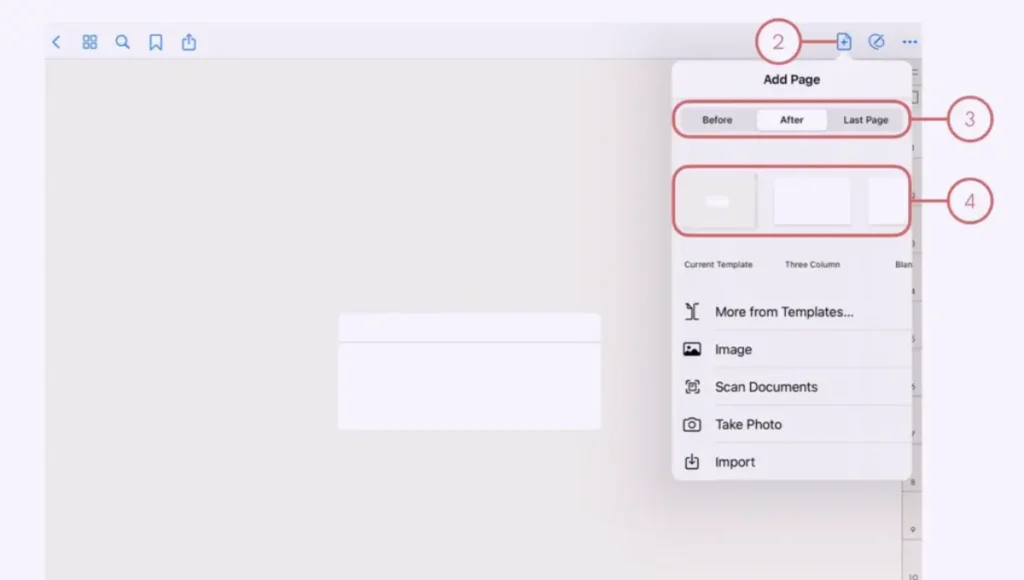
Navigate to the desired location to add a new page.
Choose the “+” symbol in the Navigation Bar.
Decide whether you want to insert the page before, after, or at the end of the existing pages.
Select the template you wish to use for the new page and click to add.
Copy And Paste Page
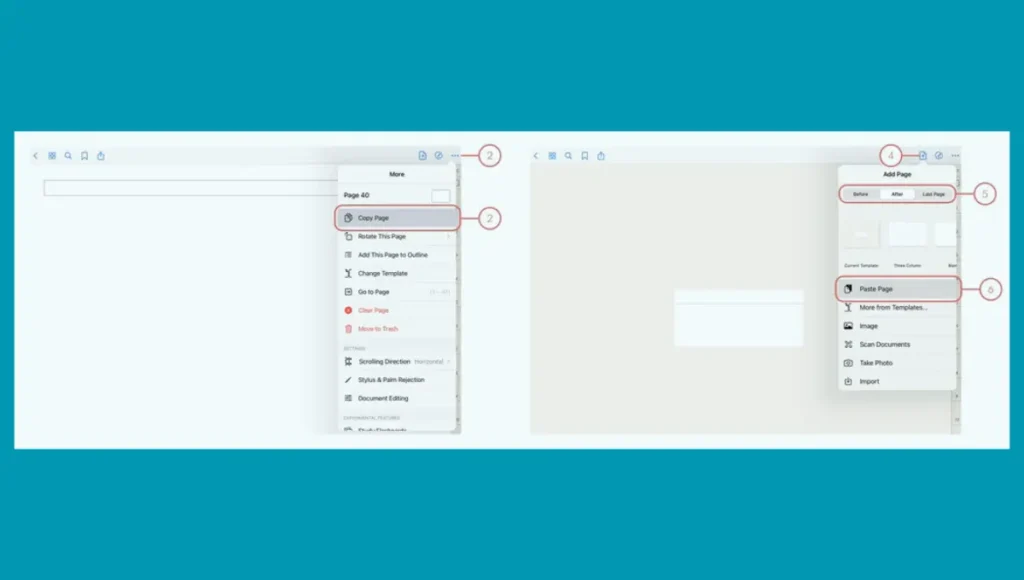
Navigate to the page you want to duplicate.
Click on the three dots icon (More icon), then choose “Copy Page”.
Navigate to the desired location where you intend to insert the copied page.
Click on the “+” (Plus page icon).
Decide whether you want to add the page before, after, or at the end of existing pages.
Select “Paste Page” to complete the duplication process.
Re-Arrange Page
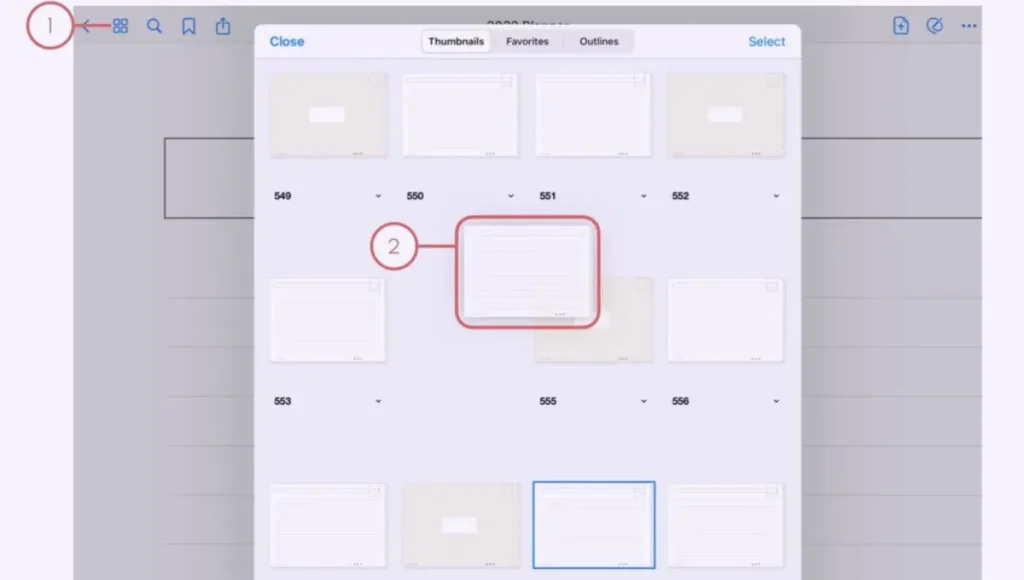
Tap the Thumbnail View icon to see a small preview of the document.
Hold down your finger on the page you wish to move, then drag it to the desired location where you want it to be placed.
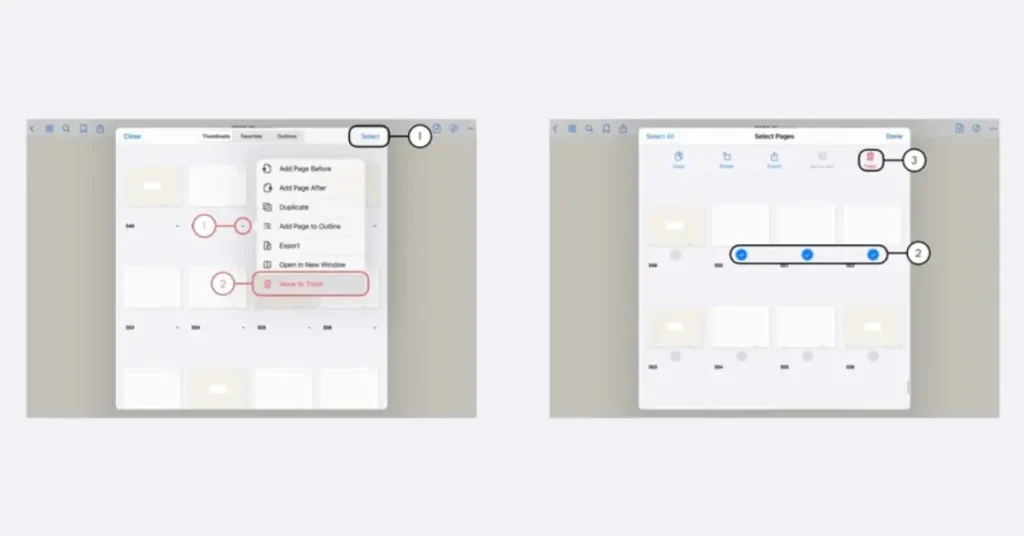
Delete Page
In the Thumbnail view, tap the small downward arrow beneath the page you wish to remove.
Choose “Move to Trash” from the options.
(Note: To delete multiple pages simultaneously, tap “Select” in the upper right corner, then pick the pages you want to delete, and finally tap “Trash”.)
How do I Duplicate a Page in a Digital Planner?
To duplicate a page in a digital planner, follow these steps:
Open your digital planner application.
Go to the page you wish to duplicate.
Look for an option to duplicate the page. This might be accessed through a menu, toolbar, or by tapping and holding on the page.
Select the duplicate option.
Once the page is copied, navigate to where you want to insert the duplicated page.
Find the option to paste the copied page. This could be located in a menu or toolbar.
Tap the paste option to insert the duplicated page into your digital planner.
Good Notes Copy Page Not Working
If the copy page feature is not working in GoodNotes, you can try the following troubleshooting steps:
Restart the GoodNotes app: Close the app completely and then reopen it to see if the issue persists.
Update GoodNotes: Ensure you have the latest version of the GoodNotes app installed from the App Store. Sometimes, updating the app can resolve bugs and issues.
Verify the available storage space on your device to ensure it is sufficient. Lack of storage can sometimes cause apps to malfunction.
Restart your device: Try restarting your iPad or iPhone to refresh the system and potentially resolve any temporary glitches.
Frequently Asked Questions
Yes, you can rearrange pages in GoodNotes. Simply tap the Thumbnail View icon to see a preview of your document, then hold down your finger on the page you want to move and drag it to the desired location within the document.
Yes, you can add custom templates for new pages in GoodNotes. GoodNotes allows you to import and use your templates, providing flexibility in document creation.
Yes, GoodNotes supports automatic page numbering. You can enable this feature in the app’s settings to have page numbers automatically added to your document.
While GoodNotes does not have a built-in feature to duplicate multiple pages simultaneously, you can duplicate pages individually and rearrange them as needed within your document.
When duplicating pages in GoodNotes, the copied pages typically retain the same content and formatting as the original. However, it’s recommended to double-check the duplicated pages to ensure everything is transferred correctly.
Conclusion
Mastering the functions to add, duplicate, or delete pages in GoodNotes enhances productivity and organization.
With these features, users can effortlessly customize their documents, streamline workflows, and maintain clarity within their digital notebooks.
GoodNotes provides intuitive tools to efficiently manage pages, empowering users to optimize their note-taking experience.
Most students find mathematics difficult yet the proper educational resources make learning mathematics simpler to manage. The free online platform Maths Genie operates as an effective resource for students of different ages to enhance their mathematical abilities. Maths Genie provides its users with structured lessons and practice questions and past exam papers that help students…
If you’re a fan of digital note-taking, you’ve probably heard of GoodNotes. This versatile app is a favourite among students, professionals, and anyone who loves to stay organised. One of the features that makes Good Notes stand out is the ability to customise fonts. In this article, we’ll explore how to use the font on…
Good Notes is one of the most popular note-taking apps for iPad, Mac, and iPhone, known for its smooth handwriting experience, PDF annotation features, and organizational tools. But with various pricing options, you might wonder: Is Good Notes worth the price? Let’s break down the costs and features to help you decide. Good Notes Pricing…
Good Notes is a powerful tool for digital note-taking, loved for its intuitive design and versatile features. Among these features, text boxes make it easy to add and manage typed text within your notes. But what if a text box is unnecessary, misplaced, or added by mistake? Deleting it is a simple and hassle-free process….
Have you ever opened Good Notes, ready to dive into your latest notes, only to find that they haven’t synced across your devices? Frustrating, right? We rely on Good Notes to keep our digital lives organized, and when syncing issues arise, it can wrench our productivity. But don’t worry! This article will explore why your…
Good Notes is a popular note-taking app for iOS and iPad OS users, known for its flexibility and powerful features. However, ensuring your notes are safely backed up is crucial to prevent data loss. OneDrive, Microsoft’s cloud storage service, offers a reliable solution for backup. Here’s how to back up your Good Notes data to…